
OBS Remote
OBS Remote lets you control OBS from any browser, anywhere in the world. There is nothing to install: add one Synchra URL as an OBS Browser source, then switch scenes and start or stop your stream from the Synchra dashboard.
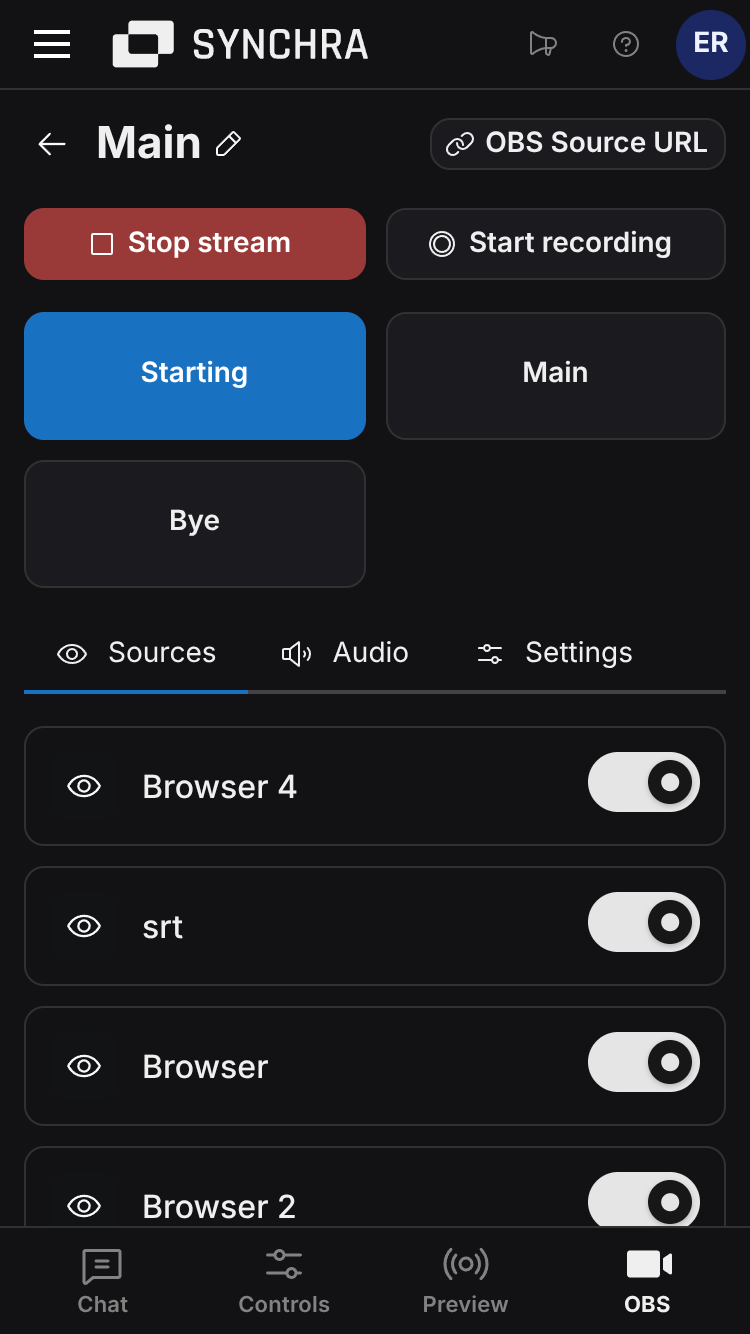
- Open the Synchra Dashboard.
- Go to Stream Tools > OBS Remote.
- Create an OBS Remote.
- Open it and click OBS Source URL.
- In OBS, add a Browser source.
- Paste the Synchra URL into the Browser source URL field.
- Set Page Permissions to Full access to OBS.
Full access to OBS is required for scene switching and stream/recording controls.
Optional: More OBS Access
Section titled “Optional: More OBS Access”Skip this unless you want Synchra to manage OBS audio, source visibility, profiles, or scene collections.
OBS WebSocket is built into OBS. Synchra uses it from the Browser source you already added.
- In OBS, go to Tools > WebSocket Server Settings.
- Enable the WebSocket server.
- Set or copy the WebSocket password.
- In Synchra, open OBS Source URL.
- Enter Server port and Server password.
- Copy the updated URL into the OBS Browser source.
The password stays in the copied URL fragment. The OBS Browser source reads it. It is not sent to the Synchra API.
Troubleshooting
Section titled “Troubleshooting”- Offline: check that the OBS Browser source exists and uses the current Synchra URL.
- Controls disabled: set Page Permissions to Full access to OBS.
- OBS WebSocket state is missing: enable OBS WebSocket and copy a new URL with Server port and Server password.
- WebSocket fails: check the port and password. The default port is usually
4455.